Search
Follow
Recent Comments
« Managing User Preferences within an iPhone App | Main | Selecting images in Universal apps »
Tuesday
May182010

Adding a settings bundle to an iPhone App

An example of how to add a simple settings bundle to an application to allow the user to set some application defaults. In this example we will add a switch to allow the user to lock the device rotation.

Adding a Rotation Lock

The ability of an application to rotate to match the orientation of the device you are holding is a great feature and Apple encourages App developers to support all possible orientations. However there are some situations such as when you are using the device lying down when the rotation can be annoying. The iPad is the first, but probably not the last, device that Apple has introduced that allows the user to lock the orientation.

Adding a software based rotation lock to an existing App for pre-iPad devices is not that difficult. You can basically break the problem down into two steps:

  • Allowing the user to specify their preference as to whether rotation is allowed in an app.
  • Enabling/disabling rotation in the view controllers

Setting the User Preference

There are two basic ways to allow a user to specify a user preference. The simplest way is to use NSUserDefaults to store the preferences in the standard iPhone Settings Application. Alternatively we can add a settings screen directly to the App and store the settings in a plist file within our own application bundle. To keep this example simple we will take the first option.

To get started we need to add a Settings Bundle to our Xcode project. Right-click on the top level folder in your project and select Add->New File from the menu. Select the Settings Bundle template found under Resources to add it to your bundle leaving the default name of Settings.bundle.

Expand the Settings.bundle to display the Root.plist file which by default will contain an Array named PreferenceSpecifiers containing four dictionary items. To make it easier to edit this file you can inform Xcode that it is an iPhone settings bundle. Select the Root.plist file, click on the Root entry in the detail view to ensure it is selected and then from the Xcode view menu select Property List Type -> iPhone Settings plist.

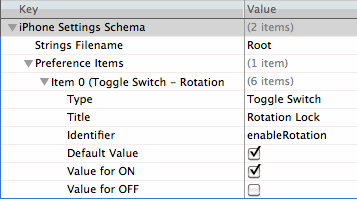
Delete the four items and add a new item that will allow us to enable/disable the rotation lock. The details of what we need to add are as follows:

Type (String): Toggle Switch - this specifies the PSToggleSwitchSpecifier which is a simple toggle switch than can be turned ON/OFF by the user.

Title (String): Rotation Lock - this is the name of the setting we want to display to the user.

Identifier (String): enableRotation - this is the key we will use to retrieve this setting in the application

Default Value (Boolean): YES - a default value for the key if not found in the preferences database (but see discussion below)

Value for ON: (Boolean): YES - the value the key should take when the switch is in the ON position. Make sure you set the type of this value to Boolean (right click on TrueValue and select Value Type -> Boolean).

Value for OFF: (Boolean): NO - the value the key should take when the switch is in the OFF position. Make sure you set the type of this value to Boolean.

If you did that correctly you should end up with something looking like this (make sure you set the types correctly especially for the Boolean fields).
If you save, build and then run the project in the simulator you should already see the entry for the application in the settings application as follows:

The icon displayed will be a scaled down version of the Icon.png file by default. If you want something different add an icon sized at 29 x 29 pixels named Icon-Settings.png to your application.

Even defaults need defaults…

One thing that is poorly explained in the Apple documentation is the use of the DefaultValue field. You would think that this sets the value that your application will see when your App runs for the first time. Unfortunately this is not the case. The default value is used to set the initial position of the toggle switch in the settings application. This is what the user will see when they open the settings application and look at the settings for the application:
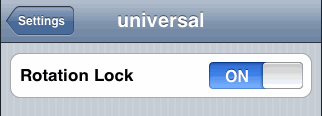
However, it is important to understand that until the user actually changes the value of the setting nothing is actually set. If you check for the setting in your application it will actually return nil unless you set a default value. To do that add the following to the applicationDidFinishLaunching (or didFinishLaunchingWithOptions) method:

  // Set the application defaults
  NSUserDefaults *defaults = [NSUserDefaults standardUserDefaults];
  NSDictionary *appDefaults = [NSDictionary dictionaryWithObject:@"YES" forKey:@"enableRotation"];
  [defaults registerDefaults:appDefaults];
  [defaults synchronize];
 

Now if the user has not yet set a value it will default to YES. To check the value anywhere in the application takes just a couple of lines of code:

  // Get user preference
  NSUserDefaults *defaults = [NSUserDefaults standardUserDefaults];
  BOOL enabled = [defaults boolForKey:@"enableRotation"];


Putting it all together

So now that we have the user preferences setup we can check the value in any of our view controllers to determine whether to permit rotation or not:

- (BOOL)shouldAutorotateToInterfaceOrientation:(UIInterfaceOrientation)interfaceOrientation {

  // Get user preference
  NSUserDefaults *defaults = [NSUserDefaults standardUserDefaults];
  BOOL enabled = [defaults boolForKey:@"enableRotation"];

  if (enabled) {

    return YES;

  } else {

    return (interfaceOrientation == UIInterfaceOrientationPortrait);

  }
}

PrintView Printer Friendly Version

EmailEmail Article to Friend

References (2)

References allow you to track sources for this article, as well as articles that were written in response to this article.
  • Response
    [...]Adding a settings bundle to an iPhone App - Blog - Use Your Loaf[...]
  • Response
    ... הובלות דירות - כמו למשל: מוסדות שמעתיקים את מקום הובלות דירה ירושלים, משרדים שמתרחבים או מצמצמים פעילות וזקוקים למקום אחסון עבור דירתם. ניתן ליהנות משירותיה של חברה הובלת דירות בחיפה, ומוכרת ב... Adding a settings bundle to an iPhone App - Blog - Use Your Loaf ...

Reader Comments (14)

Thanks for the great article.

I met a problem about the title of the app displayed in Settings. Assume my app's project name and executable name is "MyFlightGame", and I set CFBundleDisplayName to be "Touch Flight". Now in home screen, it shows "Touch Flight" instead of "MyFlightGame". That's as expected.

But in system settings app, the bundle title is inconsistent in different OS versions. On iPhone 3.0, it shows "Touch Flight" which is great. But on iPad 3.2 and iPhone OS 4.0, it shows "MyFlightGame" and ignores the CFBundleDisplayName.

Do you have any idea where I might have done wrong? Thanks!

June 28, 2010 | Unregistered Commentersamson

Check the description for CFBundleDisplayName in the Information Property List Key Reference. I did not test it yet but in theory you should not set this key unless you are localizing the display name (this changed at some point after 3.0):

Before displaying a localized name for your bundle, the Finder compares the value of this key against the actual name of your bundle in the file system. If the two names match, the Finder proceeds to display the localized name from the appropriate InfoPlist.strings file of your bundle. If the names do not match, the Finder displays the file-system name.

So in your case, assuming you did not include an InfoPlist.strings file, the value of the key does not match the bundle/executable name so the name of the bundle/executable is displayed. To get around this you would need to make the key the same as your bundle name "MyFlightGame" and then add CFBundleDisplayName = "Touch Flight" to the English locale strings file.

June 28, 2010 | Registered CommenterKeith

I also have the same problem and i have an InfoPlist.strings file ... anybody help ?
Thanks !

July 17, 2010 | Unregistered CommenterAlex

I have exactly the same problem as @samson.

app name in settings just displays the "PRODUCT_NAME" value but not the localized Bundle Display Name.
There must be some solution, because other (not mine) apps are doing well...

December 13, 2010 | Unregistered Commentermartin

@martin see this post on using localization to set the application name http://useyourloaf.com/blog/2010/12/15/localize-iphone-application-name.html

December 15, 2010 | Registered CommenterKeith

Thank you for the articles in your Blog. Although I use Macs and an iPhone since years, I'm quite new to Mac and iPhone programming and therefore find them very helpful. While working with preferences, I found no suitable way to set a bundle preference of type PSMultiValueSpecifier. While I can use integerForKey: to correctly retrieve the value of the currently set preference, setInteger:forKey: does not set the value in the preferences. Do I use the wrong method? Any help is appreciated.

January 5, 2011 | Unregistered Commentervilmoskörte

Thanks for the nice tutorial on settings. The only thing I was hoping for was how to store a date as a preference setting, guess I'll have to figure that one out on my own.

May 8, 2011 | Unregistered CommenterAlan

Is Root.plist mandatory naming? Can I use other name ?

September 5, 2011 | Unregistered Commenterken

- (BOOL)shouldAutorotateToInterfaceOrientation:(UIInterfaceOrientation)interfaceOrientation {

// Get user preference
NSUserDefaults *defaults = [NSUserDefaults standardUserDefaults];
BOOL enabled = [defaults boolForKey:@"enableRotation"];

if (enabled) {

return YES;

} else {

return (interfaceOrientation == UIInterfaceOrientationPortrait);

}
}

do i have to write this function in the interface , before i put this code in myAppDelegate.m ?

September 15, 2011 | Unregistered Commenterjon

@jon the shouldAutorotateToInterfaceOrientation method is shown here as an example of how you could check a setting. This method only makes sense in a view controller class so it would never be added to the app delegate. Maybe though I have misunderstood your question?

September 15, 2011 | Registered CommenterKeith

i m trying to put url of web service in setting bundle so that i don't need to hard code it.is it possible ???? some body help me out?thanx

September 23, 2011 | Unregistered Commenterabhishek

Thanks for post. Its was really helpful to set up a configuration for my application.

October 17, 2011 | Unregistered Commenterjagdeesh

Very useful tutorial, specially the DefaultValue part. It's confusing and lacks documentation indeed. Thanks a lot.

December 15, 2011 | Unregistered CommenterAli

Hi ,
Thanks for the article,
I met a problem in ios 4.2 and 4.3 , the current code works fine on ios 5.0 but on other versions it always return the value that I set in codes and not the value from the setting page . can somebody help me in this matter ?

Regards,

January 23, 2012 | Unregistered CommenterMilad

PostPost a New Comment

Enter your information below to add a new comment.

My response is on my own website »
Author Email (optional):
Author URL (optional):
Post:
 
Some HTML allowed: <a href="" title=""> <abbr title=""> <acronym title=""> <b> <blockquote cite=""> <code> <em> <i> <strike> <strong>