Search
Follow
Recent Comments
« Finding memory leaks in Xcode | Main
Thursday
Mar112010

Debugging core data on the iPhone

It is great that Apple shipped the core data framework with iPhone OS 3.0 but a lot of the performance and debugging tools are still missing from Xcode and Instruments. This makes trying to fine tune a slow running core data operation extra difficult on the iPhone OS.

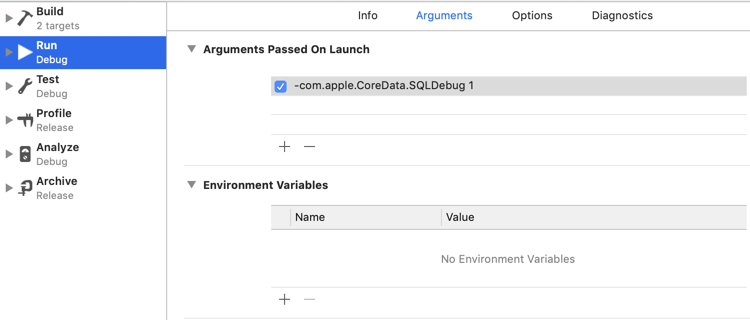
One tip I did find buried in the Core Data Programming Guide is to turn on SQL tracing. To do this you need to pass the following argument to the application:

    -com.apple.CoreData.SQLDebug 1

To be clear this needs to be an argument passed to the application and not an environment variable. To set the argument find the application under Executables in the Xcode Groups & Files window and right click to get at the Info screen. Click the Arguments tab in the diaglog window and insert the argument into the top window (Arguments to be passed on launch).

Running the application will now log the SQL requests used by core data. This peek behind the curtain to see what core data is up to is extremely useful. Understanding the SQL queries that core data is using is half the battle in optimising performance.

For example, here is the output from CoreDataBooks iPhone sample app:

2010-03-11 19:34:19.672 CoreDataBooks[3854:207] CoreData: sql: pragma cache_size=1000
2010-03-11 19:34:19.673 CoreDataBooks[3854:207] CoreData: sql: SELECT Z_VERSION, Z_UUID,
Z_PLIST FROM Z_METADATA
2010-03-11 19:34:19.763 CoreDataBooks[3854:207] CoreData: sql: SELECT 0, t0.Z_PK, t0.Z_OPT,
t0.ZAUTHOR, t0.ZTITLE, t0.ZCOPYRIGHT FROM ZBOOK t0 ORDER BY t0.ZAUTHOR, t0.ZTITLE
2010-03-11 19:34:19.764 CoreDataBooks[3854:207] CoreData: annotation: sql connection fetch
time: 0.0009s
2010-03-11 19:34:19.765 CoreDataBooks[3854:207] CoreData: annotation: total fetch execution
time: 0.0020s for 11 rows.

It might not be as good as having the full set of core data performance instruments but at least you can see the select statement and the execution time for the fetch.

PrintView Printer Friendly Version

EmailEmail Article to Friend

Reader Comments (6)

Awesome! Thanks so much.

I wish you could see what parameters were passed into the statement though. Oh well. It's better than nothing.

April 14, 2010 | Unregistered CommenterSam Soffes

Good tip - thanks Keith!

You can use the Core Data Instruments, but only on the simulator and only on version 3.1 and up.

June 1, 2010 | Unregistered CommenterChris Gummer

thanks Chris, here's hoping that the device restrictions get removed in the future.

June 1, 2010 | Registered CommenterKeith

That's great feature, it's suitable my complex sql debug. Thanks very much.

March 2, 2011 | Unregistered CommenterAlbert

Hi I'm probably being really stupid but where do you find the executable???Thanks

May 21, 2011 | Unregistered CommenterBigGeoffers

@BigGeoffers with Xcode 3 you will find it in the left hand pane (Groups & Files). Look down after the Targets section and you should see Executables. Expand that section and you should see the executable.

For Xcode 4 you need to edit the Scheme used to build and run the target. From the Product menu select Manage Schemes and edit the scheme you are using. Within the scheme you will have a number of phases such as Build, Run, Test, etc. Select the Run phase and you will see a pane with 3 tabbed sections (info, Arguments, Diagnostics). Select the Arguments tab and you will see options to set arguments and environment variables.

May 22, 2011 | Registered CommenterKeith

PostPost a New Comment

Enter your information below to add a new comment.

My response is on my own website »
Author Email (optional):
Author URL (optional):
Post:
 
Some HTML allowed: <a href="" title=""> <abbr title=""> <acronym title=""> <b> <blockquote cite=""> <code> <em> <i> <strike> <strong>